
If your social media landing pages and product launches are still relying on flat, lifeless graphics, you are blending in with the noise.
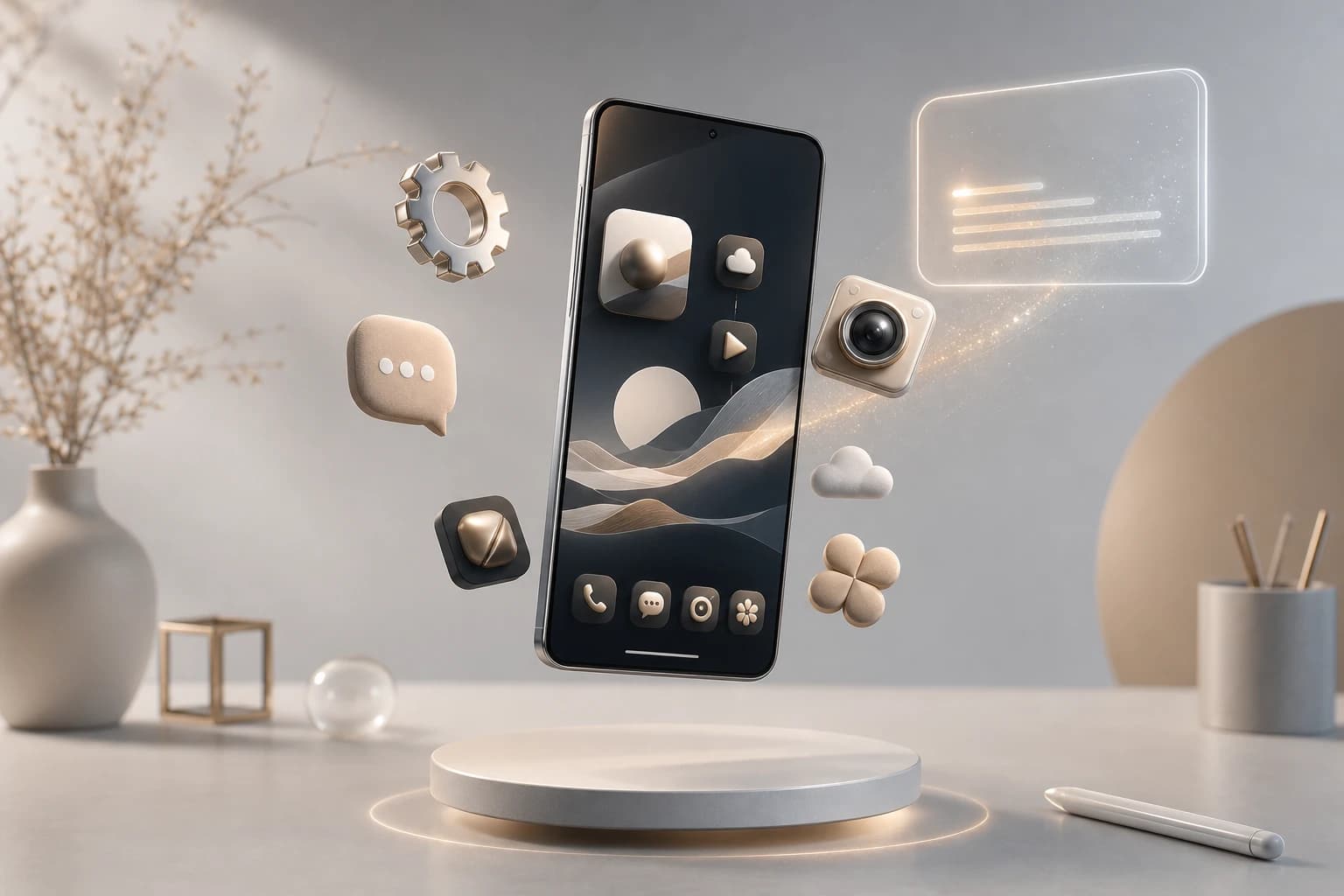
As digital design evolves, 3D social media icons have become a popular way to add depth, interactivity, and modern polish to any mobile app, website, or marketing campaign. Whether you are designing a link-in-bio page or preparing a massive business product launch, utilizing high-quality 3D images can dramatically lift your visual identity.
Here is how to source, generate, and implement 3D social media icons effectively.
Sourcing High-Quality 3D Icon Packs
You don't necessarily need to build 3D graphics from scratch. If you want to download ready-to-use assets, several libraries offer extensive collections:
- Free Curated Packs: DrawKit offers a free pack of 60 high-quality PNGs, featuring both top-down and angled views of fun 3D social media icons figma.com.
- Massive Stock Libraries: For a wider variety of specific platforms or niche styles, Adobe Stock features over 413,000 royalty-free 3D social media icons, including vectors, images, and video assets stock.adobe.com.
- Commercial-Ready Vectors: Magnific provides free 3D social vectors, stock photos, and PSD files that are cleared for commercial use.
While downloading a pre-made pack is fast, static libraries often fall short when you need precise brand alignment. If pre-made assets don't match your brand's specific color palette, you can generate custom 3D icons using AI.
Step-by-Step Workflow: Generating Custom 3D Icons with AI
If you are looking for a 블렌더 아이콘 alternative to skip the steep learning curve of traditional 3D modeling software, you can use Oven AI to instantly generate high-quality 3D graphics. Here is the exact workflow to build your own custom pack.
Step 1: Prompting the Base Icon
Instead of hunting for the perfect asset, direct the AI with a specific text prompt. Start with a foundational shape or logo. For example, you can type: 'Glossy claymorphism Instagram logo, soft studio lighting, isometric view'. You can do the exact same thing for a generic comment bubble, a plus sign, or a custom app logo.
Step 2: Locking in Brand Style Memory
To ensure your entire pack looks cohesive, Oven AI utilizes a 'Brand style memory' feature. Once you establish the look of your first icon, you can lock in the prompt's stylistic parameters. This guarantees that as you generate new assets for the rest of your business needs, they all share the exact same visual language, lighting, and material.
Step 3: Background Removal and Download
A 3D image is only useful if it can be layered cleanly over your UI. Oven AI features automatic background removal, stripping away the canvas to give you instant, drop-in ready PNGs. Once processed, you can immediately download the transparent assets to complete your custom pack.
Step 4: Direct Design Tool Integration
For design teams building a mobile app or web interface, context-switching slows down production. Use the Oven AI plugin to generate and pull these custom 3D icons directly into your canvas without ever breaking your workflow or leaving your design environment.
If this is the kind of work you're shipping, that's the gap we built Oven AI to close — open it the next time you hit this wall.
If this is the kind of work you're shipping, that's the gap we built Oven AI to close — open it the next time you hit this wall.