Key Takeaways
- Adobe Photoshop offers professional-grade speed and precision through one-click AI background removal and non-destructive masking.
- GIMP is an excellent free alternative that uses tools like the fuzzy select to remove backgrounds, helping users deeply understand image composition.
- For product design teams, the most efficient route is to skip background removal entirely by using Oven AI to generate custom 3D icons with transparent backgrounds in just six seconds.
Are you tired of monthly subscription fees and looking for a free alternative, or conversely, feeling the limits of free tools and wondering if you should upgrade to professional software?
photo editing, the battle between Adobe Photoshop and GIMP is fierce. Removing backgrounds to isolate subjects and create transparent PNGs is a frequent challenge for designers and marketers. As we noted in our deep dive into Photoshop's capabilities, Adobe's software is a paid, professional-grade suite built for complex manipulation across multiple creative disciplines. On the other hand, as explored in our complete GIMP review, GIMP is a lightweight, free alternative that handles digital image editing competently without the price tag. So, your background removal workflow, which tool is actually right for you?
Photoshop's Overwhelming Efficiency: One-Click AI and Non-Destructive Masking
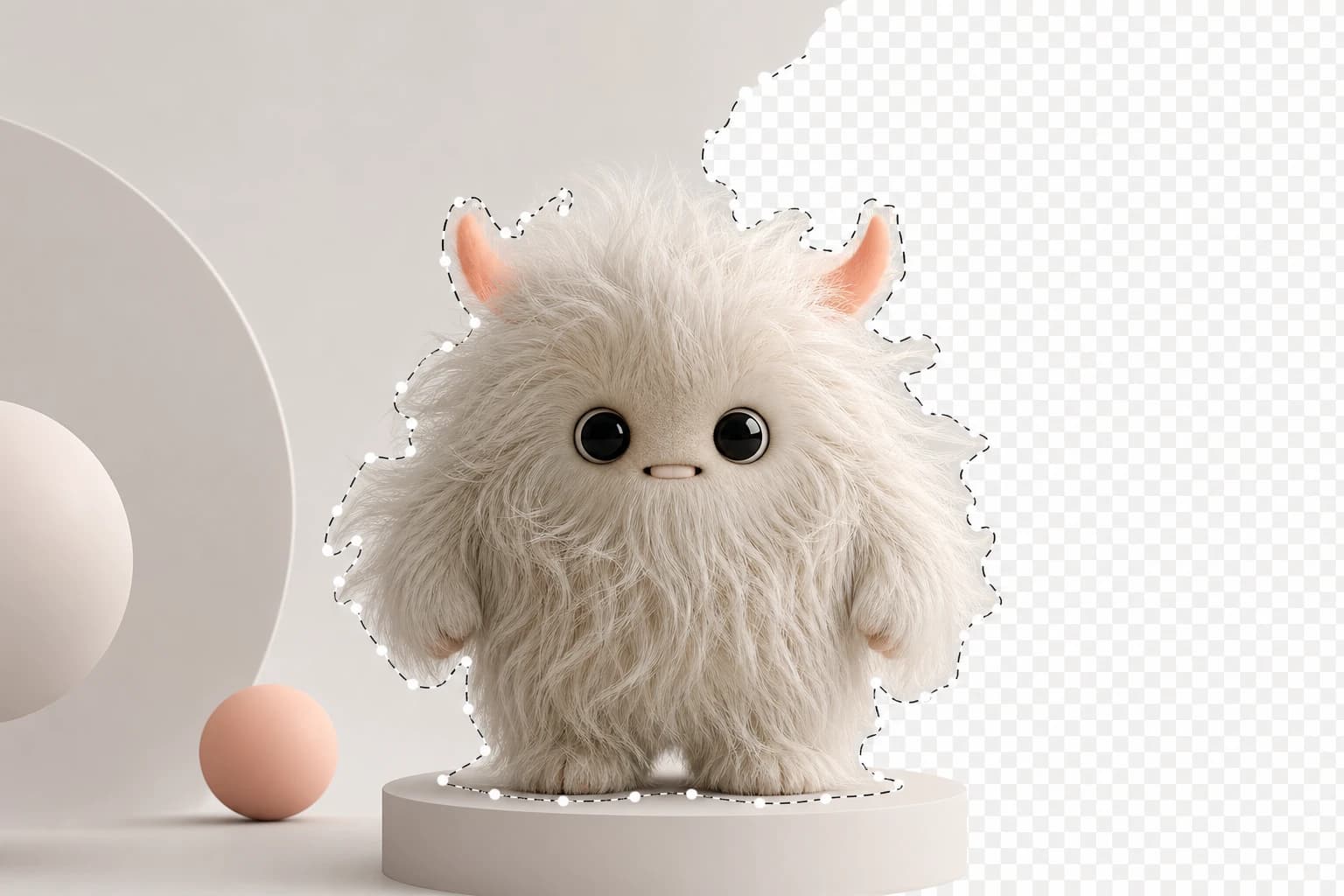
The biggest reason professionals love Photoshop is its overwhelming speed and accuracy. Photoshop's background removal feature uses built-in AI to perfectly separate the subject from the background with a single click. It effortlessly handles tricky edges like human hair or animal fur with pinpoint precision.
Furthermore, Photoshop defaults to a non destructive editing workflow. Rather than permanently deleting original pixels with an eraser tool, it uses layer masks to hide the background, ensuring you can always make revisions later. When you need to process hundreds of product images, Photoshop's batch processing capabilities via Actions guarantee excellent results in a high-volume commercial setting.
GIMP's Approach: Fuzzy Select and Open-Source Freedom
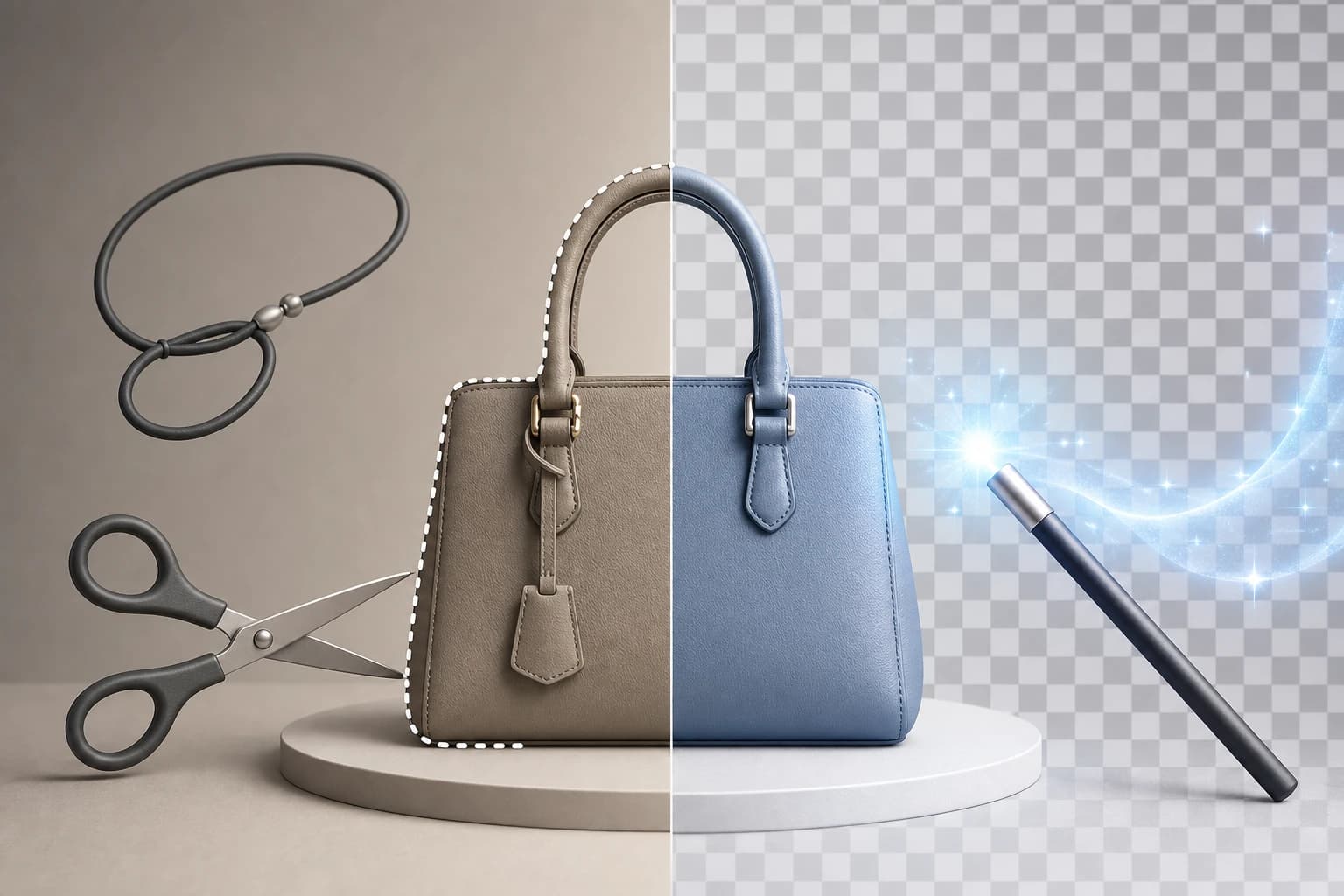
If budget is a primary factor, GIMP remains a powerful free photo editor. Because GIMP lacks the built-in AI tools found in Adobe's ecosystem, magical one-click background removal isn't natively available. Instead, you must manually isolate backgrounds using tools like the fuzzy select or the scissors tool.
While GIMP's selection tools may not reach the exact level of what Photoshop can do automatically, this manual approach provides a deeper understanding of how images are constructed and manipulated. Plus, the open source ecosystem gives you the freedom to expand your capabilities by adding community-developed background removal plugins, making it a highly adaptable editor.
The Ultimate Innovation: Skipping Background Removal Entirely with Oven AI
Are you still downloading 3D assets from stock image sites and struggling to erase the backgrounds in Photoshop or GIMP? For product teams and designers, the ultimate solution is to skip the background removal process entirely.
Instead of wrestling with masking tools or carefully tracing edges, try this in Oven AI: just type a text prompt describing what you need. In exactly six seconds, you can generate a custom 3D icon with a perfectly transparent background. Sign up for Oven AI today to instantly get native, transparent assets ready for your designs, completely eliminating the tedious background removal step from your workflow.
Exporting and Final Print Compatibility
After successfully removing a background, saving the final results reveals distinct differences between the two tools. Photoshop provides a better process and more granular control during export. Beyond saving transparent PNGs for the web, Photoshop natively supports CMYK color modes—an essential feature when your isolated images need to be applied directly to commercial print materials with perfect color accuracy.
Frequently Asked Questions
Can I remove backgrounds as cleanly in GIMP as in Photoshop? Yes, if you invest the time to manually and precisely mask your subject, you can achieve excellent results in GIMP. However, compared to Photoshop's AI-driven one-click removal and advanced edge refinement, there is a noticeable gap in workflow speed and pinpoint accuracy.
What is the fastest way to get 3D icons with transparent backgrounds? Rather than opening an existing image in an editor to manually erase the backdrop, try Oven AI. By simply entering a prompt describing the icon you want, you can generate a transparent PNG 3D icon in just six seconds, drastically cutting down your design time and driving immediate results.
What is non destructive editing in background removal, and why does it matter? Non destructive editing means using a layer mask to "hide" unwanted areas instead of permanently deleting the original background pixels. This method ensures you can always restore hidden parts or refine edges later, preventing irreversible mistakes and keeping your creative workflow flexible.