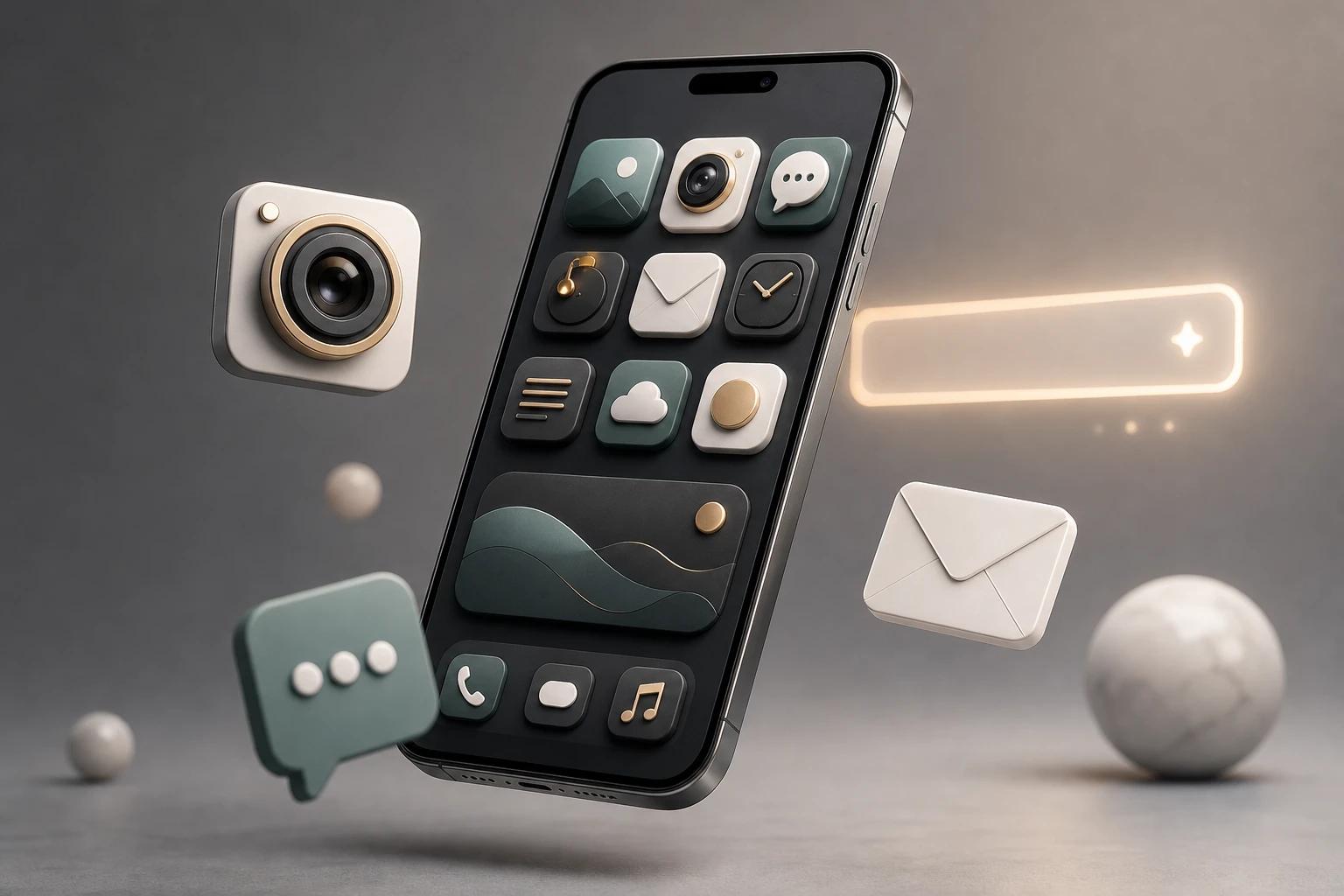
Creating custom 3D app icons can completely transform your iPhone's home screen, giving it a fresh, professional feel with incredible depth.
Transitioning from flat designs to 3D illustrations and icons is one of the biggest differentiators in modern UI customization. However, relying on generic, purchased icon packs can quickly dilute your brand identity or personal aesthetic. Mixing icons from different publishers often introduces jarring inconsistencies in perspective, lighting, color palettes, and material cues like glass, plastic, and wood figma.com.
To get a unified, professional look without the steep learning curve of complex modeling software, you need a streamlined workflow. Here is a step-by-step tutorial to generate, export, and apply your own custom 3D icon set.
Step 1: Generate a Cohesive Set with Oven AI
The biggest bottleneck in creating a custom pack is designing dozens of consistent icons. Traditionally, this meant spending hours manually lighting and rendering assets in 3D software oveners.com.
Instead of buying mismatched premium packs, you can use Oven AI to automate the heavy lifting. Oven AI features a "brand style memory" that ensures your entire custom set looks like it belongs to the exact same design family. What used to take hours of manual 3D rendering now takes a ~6-second AI render time, allowing you to quickly generate a complete, brand-consistent 3D icon set for your apps.
Step 2: Format and Export for iOS Compatibility
Once generated, Oven AI allows you to export these assets as transparent, drop-in ready PNGs, completely eliminating the need to manually remove backgrounds in photo editing software. While vector-based SVG files are great for scaling, PNGs are the ideal format when you need background transparency for your home screen.
To ensure your icons play nicely with native iOS features, such as dark mode and tinted icons, your app icons must have a distinct 3D effect that visually separates the logo from the background. If your icons are too flat, they will fail to adapt when you switch your phone to dark mode. It is highly recommended to use a white background for your app icons, allowing the 3D effect of the logo to stand out so iOS recognizes it as compatible with these visual features. Once finalized, send the downloaded PNG or JPG files directly to your phone.
Step 3: Apply Your Custom Icons Using the Shortcuts App
Apple doesn't allow you to natively overwrite default app icons with a single tap, so you will need to use the Shortcuts app workaround to apply your custom icons to an iOS home screen.
By creating individual shortcuts for each app, you can assign your newly generated 3D images as the custom app icon. Simply create a new shortcut to open your desired app, select the option to add it to your home screen, and replace the default image with your downloaded file. Because your custom icons have that built-in 3D effect, you can then go into your iOS settings to customize and change them, ensuring they react properly to system-wide aesthetic changes like dark mode or tinted filters.
If you want to create stunning 3D home screen setups without the headache of mismatched assets or hours of manual rendering, Oven AI is the perfect tool to close that gap. Open it the next time you need to build a flawless, drop-in ready icon set.
If this is the kind of work you're shipping, that's the gap we built Oven AI to close — open it the next time you hit this wall.